How to ride a structured workout outdoors on a Garmin Edge
A Garmin Edge can run a structured workout and follow a course on the same ride. The two arrive as separate files, though, and nothing on the device checks that the hard steps of the workout fall on road that can carry them. This guide covers what the Edge does with each file, how to get both onto it, and how to set up a screen you can read at threshold.
Workouts and courses are two separate things on the Edge
A workout is a list of steps. Each step usually has a target, such as power, heart rate or cadence, and an end condition, such as a time, a distance or a press of the lap button. A course is a line on the map with turn guidance. The Edge runs both at once. The workout screen shows the current target and what’s left of the step, and the map follows the course.
The Edge doesn’t link the two. If your 8-minute threshold step starts at the top of a hill, the device will ask for threshold power on the descent. Matching steps to terrain happens before the ride, by you or by whatever built the route. The guide to planning a route for interval training covers doing it by hand.
How a workout reaches the Edge: the Garmin Connect calendar
Garmin Connect has two ways to put a workout on the device. You can send it from your workout library, or you can schedule it on a day in the Garmin Connect calendar. A scheduled workout syncs to the Edge with the next device sync. Training platforms such as TrainingPeaks deliver workouts this way.
Courses don’t go through the calendar. They are sent to the device separately, from the course page in Garmin Connect or by the app that made them. So on ride day you need two things on the Edge: the workout, scheduled or sent, and the course.
Load the workout first, then the course
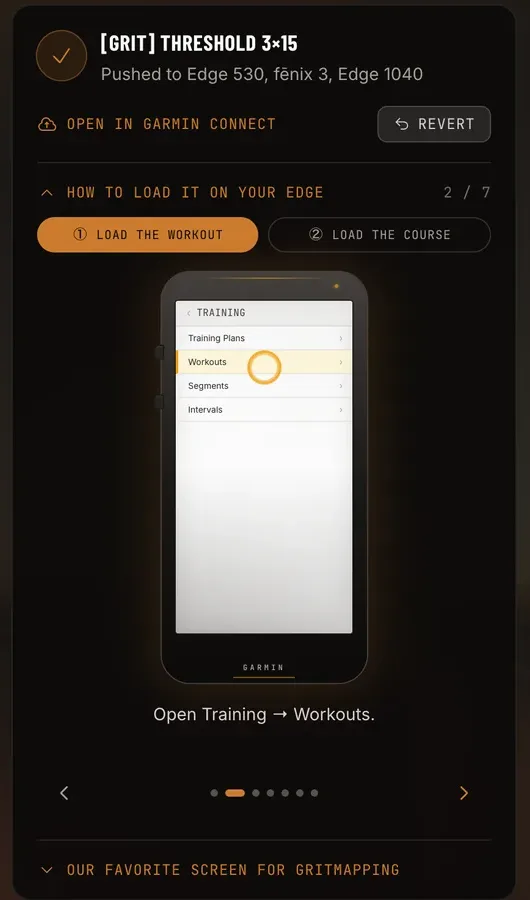
The workout screen and the map are separate pages, so load them one after the other. This is the order the Gritmaps push screen walks you through. On some newer Edges you can also add the course from the workout screen before you press Ride.
- Sync the Edge with Garmin Connect so today’s files are on it.
- Open Training → Workouts, pick the workout and press Ride. You’ll see the workout screen with your live target. There’s no map yet, which is expected.
- Load the map: swipe down from the top → Controls → Courses, pick the course and press Ride.
Both are now running. When you push from Gritmaps, the push screen walks you through these steps on a drawing of the Edge, one screen at a time. If the course never shows up, check that your device can hold courses at all. Some Garmin devices can run workouts but not courses.
Steps that end at a distance stay on their stretch of road
Most workouts are written in time: 10 minutes warm-up, 8 minutes at threshold. Indoors that’s fine. Outdoors, time and place come apart. Climb a little slower than planned or wait at a light, and every later step starts somewhere other than where you meant it to.
A step that ends after a distance stays tied to the road: the threshold step starts at the foot of the climb and ends at the top, whatever your speed. That’s why every step of a workout Gritmaps sends to your Edge ends at a distance along the course. The trade-off is that the step’s duration moves with your speed. On a slow day, an interval lasts a little longer than written.
A data screen you can read at threshold
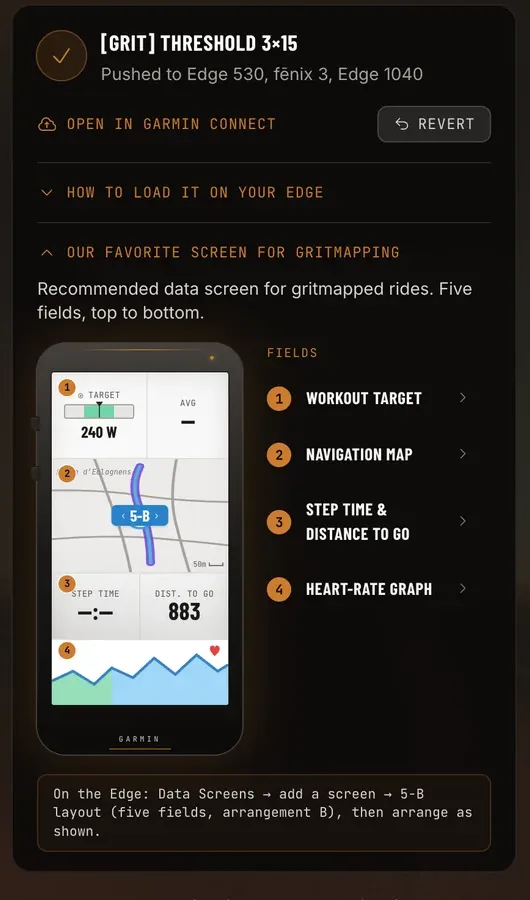
At high effort you can take in maybe two numbers at a glance. The push screen in Gritmaps includes the data screen we use for gritmapped rides, five fields, top to bottom:
- Workout target: the power or heart-rate target for the current step. Keep the marker in the band.
- Navigation map: the course, with turn-by-turn guidance.
- Step time and step distance to go. Steps end at a distance, so distance to go counts down to the next step.
- Heart-rate graph, which shows drift and recovery better than a single number.
On the Edge: Data Screens → add a screen → 5-B layout (five fields, arrangement B), then arrange the fields as shown.
Power, heart rate, and riding without a power meter
The Edge can run heart-rate targets as well as power targets, with an alert when you drift out of range. If you have no power meter, a power workout converted to your heart-rate zones still works. Give each interval a minute before you judge it, because heart rate lags behind the effort.
With power, judge each interval by its lap average. Outdoor power moves with every rise and gust, and chasing the number of the moment makes you ride worse.
You can also leave the numbers alone. When the route matches the workout well, the climbs already sit under the hard efforts and the flat roads under the recoveries, so riding the course by feel gives you most of the structure. On a day when you don’t want to watch a screen, that’s still far better than an unplanned ride.
Let Gritmaps build the course to fit the workout
Gritmaps does the matching step. Connect Garmin under Settings → Integrations and your planned workouts from the Garmin Connect calendar appear in the app, two weeks ahead. You can also pick a built-in workout or import a .fit file. You set when you ride and where you start, and Gritmaps returns the eight best-scoring routes, with the climbs placed under the hard efforts and few junctions inside them. Each step of the adapted workout ends at a distance along the route, so steps change where the terrain does.
Press Push to Garmin and the course goes to your Edge, and the workout is scheduled on your Garmin calendar on the ride date and sent to the device too. If the workout came from your Garmin calendar, it’s updated in place, and Revert puts it back to its original shape. To connect, you sign in with your Garmin credentials and Gritmaps keeps only the access tokens. Generating routes is free. Sending them to your Edge is part of Premium, free during the beta. Create your free account and try it on your next planned workout.